> ## Documentation Index
> Fetch the complete documentation index at: https://developers.quotivity.com/llms.txt
> Use this file to discover all available pages before exploring further.
# How to Connect an AI Assistant to Quotivity Using the MCP Server
> The Quotivity MCP server lets AI assistants (Claude, ChatGPT, VS Code agents, and others) read and write Quotivity data directly. Once connected, you can manage bundles, price books, compatibility rules, quote rules, and more through a conversation.
The Quotivity MCP server lets AI assistants (Claude, ChatGPT, VS Code agents, and others) read and write Quotivity data directly. Once connected, you can manage bundles, price books, compatibility rules, quote rules, and more through a conversation.
This article covers:
* What you need before you start
* How to connect Claude Desktop, VS Code, or ChatGPT
* What the AI can do once connected
* How to troubleshoot common errors
***
## Before You Start
You need:
* An active Quotivity account with admin permissions
* A Quotivity session open in your browser (you must be logged in)
* An MCP-compatible AI client (Claude Desktop, VS Code with MCP support, or ChatGPT)
The MCP server uses your existing Quotivity session for authorization. There is no separate API key to generate.
***
## Server URLs
| Region | URL |
| ------------------- | -------------------------------------- |
| US-hosted customers | `https://mcp.secure.quotivity.com` |
| EU-hosted customers | `https://mcp.secure-eu1.quotivity.com` |
Use the production URL that matches your account region unless you are testing against a non-production environment.
***
## Connect Claude Desktop
Simplest configuration:
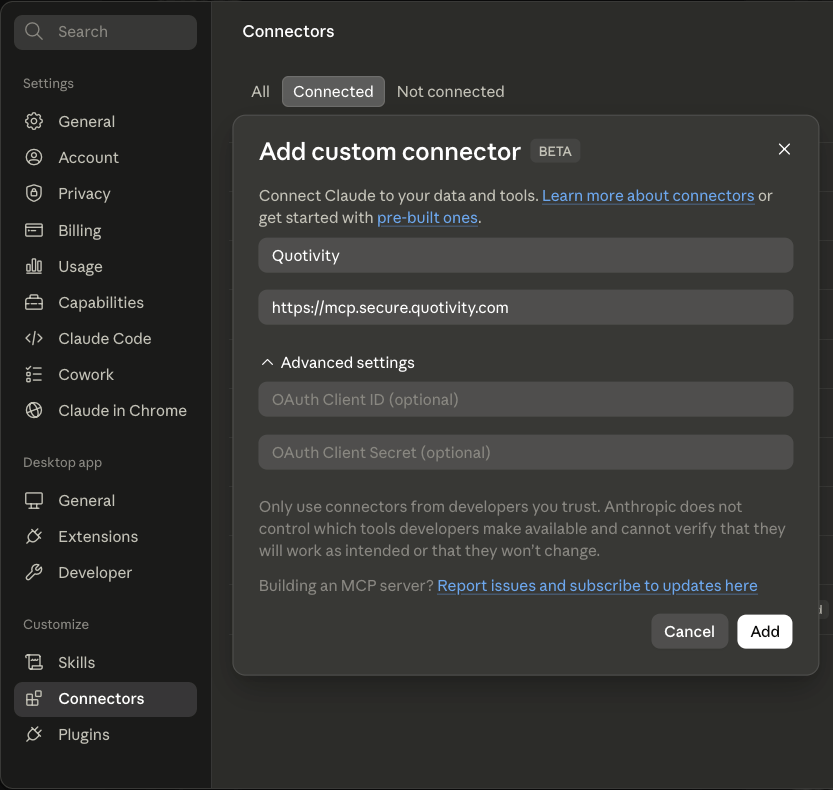 Alternatively, you can configure it in your existing configuration file:
1. Open your Claude Desktop configuration file (`claude_desktop_config.json`).
2. Add the following inside the `mcpServers` object:
```json theme={null}
{
"mcpServers": {
"quotivity": {
"url": "https://mcp.secure.quotivity.com",
"transport": "http",
"oauth": {
"client_id": "claude-desktop",
"authorization_url": "https://mcp.secure.quotivity.com/oauth/authorize",
"token_url": "https://mcp.secure.quotivity.com/oauth/token",
"scopes": ["mcp:api"]
}
}
}
}
```
1. Save the file and restart Claude Desktop.
2. Claude will prompt you to authorize Quotivity on first use. A browser window will open showing a consent screen with your account info and the scopes being requested.
3. Click **Authorize**. The browser will redirect, and Claude will receive an access token automatically.
Tokens expire after 4 hours. Claude will prompt you to re-authorize when the token expires.
***
## Connect ChatGPT
ChatGPT supports the same OAuth 2.1 + PKCE flow. When configuring the connector, use these callback URLs (one of these must be registered as your redirect URI):
* `https://chatgpt.com/aip/mcp/callback`
* `https://chat.openai.com/aip/mcp/callback`
The server URL is `https://mcp.secure.quotivity.com`.
***
## What the AI Can Do
Once connected, the AI has access to the following Quotivity tools. It can only perform actions your Quotivity account has permission to perform.
### Bundles
Create, list, retrieve, update, and delete bundles. Activate or deactivate a bundle with `set_bundle_state`. Manage bundle options and the products inside each option.
### Price Books
Create and update price books, clone an existing book, set product prices, retrieve prices for a specific book or product, and delete books.
### Compatibility Rules
This is the most capable area. The AI can:
* Draft a compatibility rule from plain language (same AI flow as the admin UI) without saving it
* Detect conflicts between a new rule and your existing rules before saving
* Preview how a rule change would affect selections across your bundles
* Create, update, list, and delete rules
* Validate bundle selections against your active rule set
Use `draft_compatibility_rule_from_nl` to describe the rule in plain language, then `detect_compatibility_rule_conflicts` before committing.
### Calculated Prices
Full create, read, update, and delete. Set which products a calculated price applies to with `set_calculated_products`.
### Quote Rules
Create, read, update, list, and delete quote rules.
### Dynamic Property Sets
Create, read, update, list, and delete dynamic property set rules.
### Roll-ups
Create, read, update, list, and delete roll-ups.
### HubSpot Integration
* Create, read, update, and delete HubSpot properties (yep!)
* `get_object_schema` — retrieve a HubSpot object schema
* `search_products` — search your HubSpot product library
### Account and Metadata
* `get_account_id` / `set_account_id` — view or switch the active Quotivity account for the session
* `get_feature_flags` — check which features are enabled on the account
* `get_tax_rates` — retrieve tax rates from HubSpot
* `refresh_metadata` — refresh cached account metadata
***
## HubSpot MCP Auth App
Our MCP also embeds the HubSpot MCP so that anything you might want to do in HubSpot that we don't cover is possible. If you already have the HubSpot MCP, just make sure you're signed into the same portal.
**Especially important for Partners**
If you have the HubSpot MCP enabled in the same MCP client, make sure it's connected to the same portal your Quotivity MCP is connected to.
***
## Troubleshooting
**"Missing bearer token"**
The OAuth flow was not completed or the token has expired. Re-authorize through your AI client.
**"Invalid or expired token"**
The token has expired (4-hour lifetime) or was revoked because your Quotivity session ended. Log into Quotivity in your browser, then re-authorize in your AI client.
**"Invalid session"**
Your Quotivity session expired. Log into the Quotivity web app first, then re-run the OAuth flow.
**"Insufficient scope"**
The token was issued without the `mcp:api` scope. Re-authorize and confirm you are accepting the full scope request on the consent screen.
**OAuth redirect fails**
The redirect URI in your client config must exactly match one of the allowed callback URLs. Check for trailing slashes or HTTP vs. HTTPS mismatches. For local development, `localhost` is allowed without HTTPS.
**"connect\_hubspot\_mcp" returns a connect URL**
This means the HubSpot MCP Auth App token is missing or expired. Open the returned URL in a browser and complete the authorization flow.
***
## Security Notes
* Tokens are valid for 4 hours and are not refreshable. Re-authorization requires an active Quotivity session.
* Authorization codes are single-use and expire after 10 minutes.
* All endpoints require HTTPS (localhost is exempt for local development).
* The AI can only perform actions permitted by your Quotivity account role.
Alternatively, you can configure it in your existing configuration file:
1. Open your Claude Desktop configuration file (`claude_desktop_config.json`).
2. Add the following inside the `mcpServers` object:
```json theme={null}
{
"mcpServers": {
"quotivity": {
"url": "https://mcp.secure.quotivity.com",
"transport": "http",
"oauth": {
"client_id": "claude-desktop",
"authorization_url": "https://mcp.secure.quotivity.com/oauth/authorize",
"token_url": "https://mcp.secure.quotivity.com/oauth/token",
"scopes": ["mcp:api"]
}
}
}
}
```
1. Save the file and restart Claude Desktop.
2. Claude will prompt you to authorize Quotivity on first use. A browser window will open showing a consent screen with your account info and the scopes being requested.
3. Click **Authorize**. The browser will redirect, and Claude will receive an access token automatically.
Tokens expire after 4 hours. Claude will prompt you to re-authorize when the token expires.
***
## Connect ChatGPT
ChatGPT supports the same OAuth 2.1 + PKCE flow. When configuring the connector, use these callback URLs (one of these must be registered as your redirect URI):
* `https://chatgpt.com/aip/mcp/callback`
* `https://chat.openai.com/aip/mcp/callback`
The server URL is `https://mcp.secure.quotivity.com`.
***
## What the AI Can Do
Once connected, the AI has access to the following Quotivity tools. It can only perform actions your Quotivity account has permission to perform.
### Bundles
Create, list, retrieve, update, and delete bundles. Activate or deactivate a bundle with `set_bundle_state`. Manage bundle options and the products inside each option.
### Price Books
Create and update price books, clone an existing book, set product prices, retrieve prices for a specific book or product, and delete books.
### Compatibility Rules
This is the most capable area. The AI can:
* Draft a compatibility rule from plain language (same AI flow as the admin UI) without saving it
* Detect conflicts between a new rule and your existing rules before saving
* Preview how a rule change would affect selections across your bundles
* Create, update, list, and delete rules
* Validate bundle selections against your active rule set
Use `draft_compatibility_rule_from_nl` to describe the rule in plain language, then `detect_compatibility_rule_conflicts` before committing.
### Calculated Prices
Full create, read, update, and delete. Set which products a calculated price applies to with `set_calculated_products`.
### Quote Rules
Create, read, update, list, and delete quote rules.
### Dynamic Property Sets
Create, read, update, list, and delete dynamic property set rules.
### Roll-ups
Create, read, update, list, and delete roll-ups.
### HubSpot Integration
* Create, read, update, and delete HubSpot properties (yep!)
* `get_object_schema` — retrieve a HubSpot object schema
* `search_products` — search your HubSpot product library
### Account and Metadata
* `get_account_id` / `set_account_id` — view or switch the active Quotivity account for the session
* `get_feature_flags` — check which features are enabled on the account
* `get_tax_rates` — retrieve tax rates from HubSpot
* `refresh_metadata` — refresh cached account metadata
***
## HubSpot MCP Auth App
Our MCP also embeds the HubSpot MCP so that anything you might want to do in HubSpot that we don't cover is possible. If you already have the HubSpot MCP, just make sure you're signed into the same portal.
**Especially important for Partners**
If you have the HubSpot MCP enabled in the same MCP client, make sure it's connected to the same portal your Quotivity MCP is connected to.
***
## Troubleshooting
**"Missing bearer token"**
The OAuth flow was not completed or the token has expired. Re-authorize through your AI client.
**"Invalid or expired token"**
The token has expired (4-hour lifetime) or was revoked because your Quotivity session ended. Log into Quotivity in your browser, then re-authorize in your AI client.
**"Invalid session"**
Your Quotivity session expired. Log into the Quotivity web app first, then re-run the OAuth flow.
**"Insufficient scope"**
The token was issued without the `mcp:api` scope. Re-authorize and confirm you are accepting the full scope request on the consent screen.
**OAuth redirect fails**
The redirect URI in your client config must exactly match one of the allowed callback URLs. Check for trailing slashes or HTTP vs. HTTPS mismatches. For local development, `localhost` is allowed without HTTPS.
**"connect\_hubspot\_mcp" returns a connect URL**
This means the HubSpot MCP Auth App token is missing or expired. Open the returned URL in a browser and complete the authorization flow.
***
## Security Notes
* Tokens are valid for 4 hours and are not refreshable. Re-authorization requires an active Quotivity session.
* Authorization codes are single-use and expire after 10 minutes.
* All endpoints require HTTPS (localhost is exempt for local development).
* The AI can only perform actions permitted by your Quotivity account role.